Global or Local, That Is the Question
Excel developers have debated workbook-level (global) versus worksheet-level (local) defined names for decades. Here are the pros, the cons, and a clear recommendation.
Ever since Microsoft added support for multiple worksheets in Excel 5.0 (1993), Excel developers have debated the pros and cons of range names defined at the global level versus the local level. This article discusses the pros and cons of each and makes a clear recommendation.
Global vs. Local Names
There are two scope levels for defined names: Global and Local. Global names are defined at the workbook level, and local names are defined at the worksheet level. A global name is referenced in a formula by entering just the name: =MyName. A local or worksheet-level name is referenced by prepending the name with the worksheet name: =MyWorksheet!MyName.
The Pros and Cons
Global names are easier to define and reference. Select the referenced range, enter the name in the Name Box, and press Enter. To refer to the name in a formula, simply type the name.
Local names provide better organization because they identify their worksheet of origin. A local name is entered in the Name Box as MyWorksheet!MyName and is referenced in formulas the same way. They get a little more cumbersome when the worksheet name contains spaces or other special characters. In this case the worksheet name must be enclosed in single quotes when defining it and when referencing it in formulas: 'My Worksheet'!MyName.
At first glance, this appears to be little more than a stylistic choice.
But there is more to the story.
Excel includes built-in dependency tracking and name management logic to help us be productive and keep us from getting into trouble. For example, if we refer to a table name in a formula and then change the table name, Excel will change the references to that table in every formula in the workbook. It's transparent and effective.
That name management logic uncovers a few challenges with global names when we move or copy a worksheet to another workbook, and the same global name is defined in each. If Excel determines that the global name needs to be copied along with the worksheet, it will do one of two things:
- Excel adds the name to the target workbook as a local name. The result is that the target workbook now has the original global name and a second local name. In some cases, this can result in several replicated names: one global name and one or more local names.
- Excel displays the Name Conflict dialog:
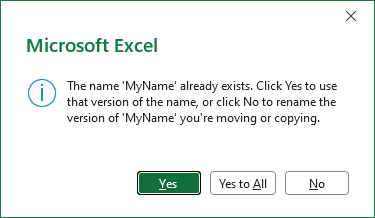
This dialog is displayed for every name conflict which can quickly become annoying. Note that in modern Microsoft 365 subscription versions, the "Yes to All" option is provided which eliminates the repeated display of the dialog reducing the annoyance, but it still does not solve the underlying problem. Clicking "No" displays the secondary Name Conflict dialog:
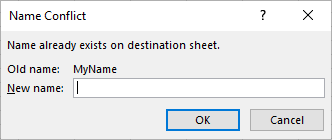
Even though it presents a Cancel button, it does not actually provide a way to cancel the move or copy. In the end we're stuck with the results of the move or copy and most likely some extra names we don't want in the target workbook.
Local names have none of the above issues. When copying or moving a worksheet, local names are copied with it. No unwanted names and no changes in scope.
Better Practice
Based on these observations, it seems logical to only use worksheet-level or local names. For workbooks containing worksheets that are frequently copied, moved, or reused as templates, this is our recommended practice. Using worksheet-level names requires a little more typing when defining names and results in longer formula references. However, in larger, more complicated workbooks or situations where worksheets are often copied within the same workbook or to another workbook, using local names eliminates the headache of cleaning up names later. It also prevents the Name Conflict dialog from appearing.
The Caveat
One exception is when a defined name is used to create a dynamic data validation list. In that case, the name must have workbook scope. Worksheet-level names cannot be used as the source for a data validation list. This is an Excel limitation rather than a limitation of local names themselves.
In this case, either use a workbook-level name and accept the possibility of a name conflict when worksheets are copied or place the formula directly in the Source field of the data validation rule. (The source formula for a validation list cannot have any references to local names.)
Feedback
Question, correction, or comment? Let us know.